Home > Acquisition > Sequence > Select sequence sample types
Sample types are used in a sequence to describe each item being processed. You select sample types in the sequence table or as part of a sequence template.
Table: Sample type descriptions
Sample
A sample with unknown amounts of analytes being analyzed.
analyte [ˈænəlaɪt] : 분석물(분석 대상 성분)
분석 중인 분석물의 양을 알 수 없는 샘플.
=> 우리가 실제로 함량을 알고자 하는 미지 시료(Unknown Sample)
Blank
A sample without any analytes that is treated like a sample. It is used as a signal-to-noise reference for all subsequent samples and for system suitability. If an ISTD method is being used, then the Blank usually contains the internal standard.
분석물이 포함되지 않은 샘플로, 일반 샘플처럼 취급됩니다. 이것은 이후의 모든 샘플에 대한 신호 대 잡음(S/N) 비율의 기준 및 시스템 적합성 확인을 위해 사용됩니다. 만약 내부 표준법(ISTD)이 사용되는 경우, Blank는 일반적으로 내부 표준물질을 포함합니다.
Double blank
Sometimes called "solvent blank", it is used to prove that no chromatographic artifacts are coming from the instrument flow path for that particular column.
artifacts [ˈɑːrtɪfækt] : 아티팩트(인공적인 오류/흔적)
Double blank : 때로는 "solvent blank"라고 불리며, 특정 컬럼에 대해 기기 흐름 경로에서 크로마토그래피 가짜 피크가 나오지 않음을 증명하는 데 사용됩니다
=> 일반적인 Blank는 Analyte만 빼지만 ISTD는 넣는 경우가 많다. 하지만 Double Blank는 내부 표준물질조차 넣지 않은 순수 용매그 자체를 의미한다. 그래서 '이중으로 비어 있다'는 뜻의 Double을 쓴다.
=> Double Blank를 찍었는데도 피크가 나온다면, 그것은 시료의 문제가 아니라 기기 시스템(Flow path) 어딘가가 오염되었다는 강력한 증거가 된다.
Cal. Std. (Calibration standard)
A sample with a known amount of analyte that is used as a reference to create or update a calibration table in the processing method.
processing method에서 검량선(Calibration Table)을 작성하거나 업데이트하기 위해 참조로 사용되는, 분석물의 양을 알고 있는 샘플입니다.
QC check
A sample with a known amount of analyte that is used to verify and prove that the calibration is correct.
Calibration이 정확한지 확인하고 증명하기 위해 사용되는, 분석물의 양을 알고 있는 샘플입니다.
=> 검량선을 만든 후, 분석 중간에 이 샘플을 찍어서 기기가 여전히 정확한 값을 내고 있는지(유효성) 점검하는 용도
Spike
A sample with a known amount of standard added.
일정량의 표준물질이 첨가된 샘플.
=> Spike : 못, 찌르다
- Sample (시료): 우리가 분석하고자 하는 전체 덩어리 (예: 오렌지 주스 한 병)
- Analyte (분석물): 샘플 안에 있는 분석하고자하는 성분. (예: 주스 속 비타민 C)
- Matrix (매트릭스/기질): 샘플에서 Analyte을 제외한 나머지 모든 성분. (예: 주스 속의 물, 당분, 구연산, 색소 등)
순수용매와 다르게 실제 시료(Matrix) 안에는 분석을 방해하는 수만 가지 물질이 섞여 있다.
① 회수율(Recovery) 테스트
예를 들어, 강물에 오염물질 A가 100만큼 들어있다고 예상되는데, 전처리 과정(필터링, 가열 등)에서 20만큼 사라질 수도 있다. 이를 확인하기 위해, 아무것도 없는 깨끗한 물에 표준물질 A를 100만큼 강제로 넣고(Spiking) 분석한다.
만약 결과가 80만 나온다면 현재 분석법은 20% 정도 손실이 발생하는 것임을 알 수 있다.
② 매트릭스 방해 효과 (Matrix Effect)
똑같은 비타민 C 10mg이라도, 순수한 물에 녹였을 때와 걸쭉한 오렌지 주스에 들어있을 때 기기가 읽어내는 신호의 세기가 다를 수 있다. 주스 속의 당분이나 단백질이 기기 센서를 가리거나 반응을 방해하기 때문이다.
따라서 실제 시료에 표준품을 넣었을 때와 순수 용매에 넣었을 때의 결과값이 다르다면, 시료 속의 불순물이 분석을 방해하고 있다는 증거가 된다.
Sys Suit
A sample that is run to demonstrate that system is working correctly as expected. This sample is typically run before running other samples.
시스템이 예상대로 올바르게 작동하고 있음을 증명하기 위해 실행되는 샘플. 이 샘플은 일반적으로 다른 샘플을 실행하기 전에 실행됩니다.
Home > Acquisition > Sequence > Sample tray
Sample tray
Sample tray
Home > Acquisition > Sequence > Sample tray > View sample trays
View sample trays
If you are using an LC instrument with a Multisampler or standard sampler, you can view your sequence in the sample tray. After the trays have been positioned in your Multisampler, edit the 3D image of your trays, and then view your sequence in a tray. Only the user controlling the LC instrument will be able to reconfigure the instrument. Any attempt to reconfigure the instrument is recorded in the Activity Log.
1. Create or open a sequence.
2. Click Show sample trays.

3. The sample tray appears as a floating window that you can click and drag to any location. Sample trays are displayed on the left, and fraction/recovery trays are shown on the right.
샘플 트레이는 클릭하여 원하는 위치로 드래그할 수 있는 플로팅 창(부유 창) 형태로 나타납니다. 샘플 트레이는 왼쪽에 표시되고, 분취/회수 트레이는 오른쪽에 표시됩니다.
Set up the 3D image to match the physical trays in your Multisampler. If you are using a standard sampler, the correct tray type will automatically be detected by the instrument and display.
실제 멀티샘플러에 있는 물리적 트레이와 일치하도록 3D 이미지를 설정하십시오. 표준 샘플러를 사용하는 경우, 장비가 올바른 트레이 유형을 자동으로 감지하여 표시합니다.
To select the specific tray being used in the Multisampler, select the tray in the 3D image, and select the tray type from the drop-down list.
멀티샘플러에서 사용 중인 특정 트레이를 선택하려면, 3D 이미지에서 트레이를 선택한 후 드롭다운 목록에서 트레이 유형을 선택하십시오.
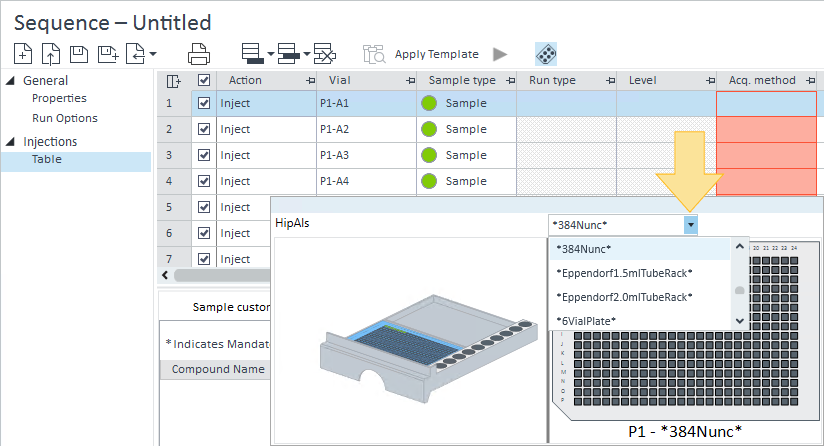
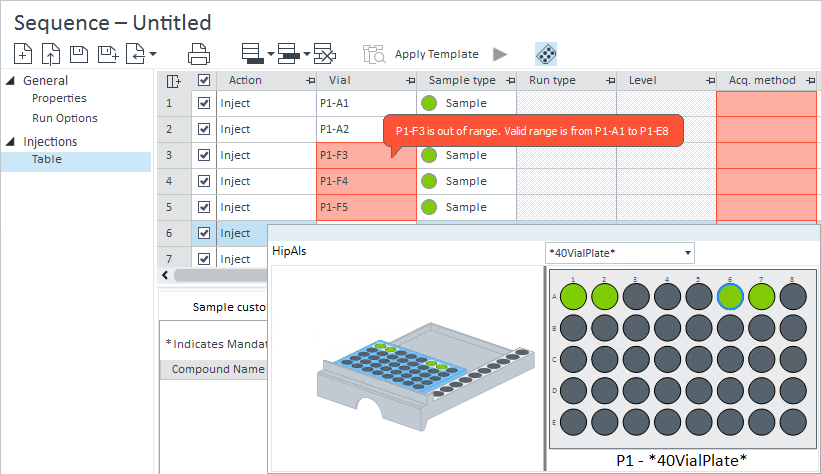
If you change your tray type, the available vial numbers may also change. If your sequence table contains injections assigned to a vial location that does not exist on the tray, the sequence rows will become invalid, and you will not be able to run the sequence. To validate the rows, you can change the vial location or delete the invalid rows.
트레이 유형을 변경하면 사용 가능한 바이알 번호도 변경될 수 있습니다. 시퀀스 테이블에 트레이에 존재하지 않는 바이알 위치로 할당된 주입 항목이 포함되어 있으면, 해당 시퀀스 행은 유효하지 않게 되며 시퀀스를 실행할 수 없습니다. 행을 유효하게 만들려면 바이알 위치를 변경하거나 유효하지 않은 행을 삭제하십시오.
To add a tray to a Multisampler 3D image, select a blank space in the 3D image, and select the tray type from the drop-down list.

4. Select a tray in the 3D image to view the sample configuration for that tray. The tray highlighted in blue is the tray configuration displayed.
해당 트레이의 샘플 구성을 보려면 3D 이미지에서 트레이를 선택하십시오. 파란색으로 강조된 트레이가 현재 표시되고 있는 트레이 구성입니다.
If you add a row to your sequence table or change the Sample type in your sequence table, the vial location in the tray updates automatically. If there are multiple rows with the same vial location, the sample type of the latest injection row determines the color of the vial location.
시퀀스 테이블에 행을 추가하거나 시퀀스 테이블에서 샘플 유형을 변경하면, 트레이의 바이알 위치가 자동으로 업데이트됩니다. 동일한 바이알 위치에 여러 행이 있는 경우, 가장 최근 주입 행의 샘플 유형이 바이알 위치의 색상을 결정합니다.
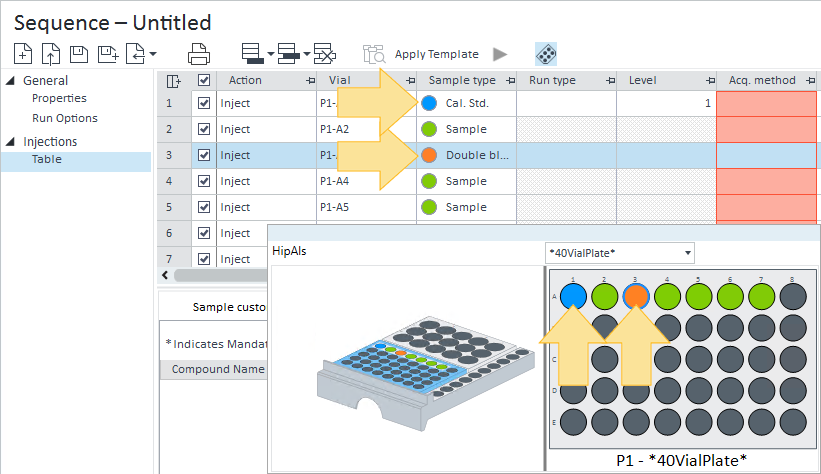
The vial location in the sample tray displays a color based on the sample type and injection status:
- Red highlight: Aborted
- Light blue highlight Acquiring
- Light green highlight: Acquired
- Green: Sample
- Blue: Calibration standard
- Grey: Blank
- Purple: QC check
- Orange: Double blank
- Magenta: Spike
- Brown: System Suit
- Clear/white: None
Home > Acquisition > Sequence > Sample tray > Use the sample tray to select sequence via vials
Use the sample tray to select sequence via vials
You can graphically select vial locations in the sample tray to define them in the Sequence table. The sample tray also allows the graphical selection of fraction start and recovery locations. Selections in the sample tray can be used to populate the sample vial, fraction start location, and recovery location values quickly.
샘플 트레이에서 그래픽으로 바이알 위치를 선택하여 시퀀스 테이블에 정의할 수 있습니다. 샘플 트레이는 분취 시작 및 회수 위치의 그래픽 선택도 허용합니다. 샘플 트레이에서의 선택은 샘플 바이알, 분취 시작 위치 및 회수 위치 값을 신속하게 채우는 데 사용될 수 있습니다.
When one row is selected in the Sequence table, select a vial, fraction, or recovery location in the sample tray to update the value in the Sequence table for the selected line.
시퀀스 테이블에서 한 행이 선택되었을 때, 샘플 트레이에서 바이알, 분취 또는 회수 위치를 선택하면 선택된 줄의 시퀀스 테이블 값이 업데이트됩니다.

When any number of rows are selected in the Sequence table, the corresponding vials are highlighted in the sample tray by a blue circle.
시퀀스 테이블에서 임의의 수의 행이 선택되면, 해당 바이알은 샘플 트레이에서 파란색 원으로 강조 표시됩니다.

When multiple rows are selected in the Sequence table, click and drag a selection in the sample tray to update the selected rows with the selected vials. Vials are defined sequentially according to the pattern displayed while dragging on the sample tray. Click and drag selections for multiple rows is not available when updating the fraction start or recovery locations.
시퀀스 테이블에서 여러 행이 선택되었을 때, 샘플 트레이에서 선택 영역을 클릭하고 드래그하면 선택된 바이알들로 선택된 행들이 업데이트됩니다.
=> 일괄 할당(Bulk Assignment) 기능. 예를 들어 테이블에서 10줄을 선택하고 트레이에서 바이알 10개를 드래그하면 순서대로 번호가 매겨진다.
바이알은 샘플 트레이에서 드래그하는 동안 표시되는 패턴에 따라 순차적으로 정의됩니다.
=> 사용자가 지그재그나 가로, 세로 방향으로 드래그할 때 화면에 미리 보이는 진행 방향(Pattern) 그대로 시퀀스 번호가 부여된다.
분취 시작 또는 회수 위치를 업데이트할 때는 여러 행에 대한 클릭 및 드래그 선택을 사용할 수 없습니다.
=> 분취 위치만큼은 한 줄 한 줄 직접 확인하며 입력해야함.
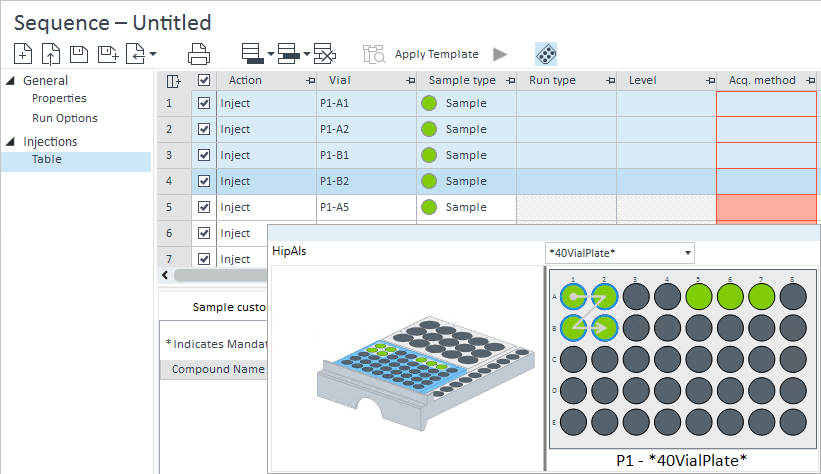
If more vial locations are selected in the sample tray than there are number of rows selected in the Sequence table, additional lines are added to the Sequence table.
시퀀스 테이블에서 선택된 행의 수보다 샘플 트레이에서 더 많은 바이알 위치가 선택되면, 시퀀스 테이블에 추가 행이 추가됩니다.
=> 자동 행 생성(Auto-generation) 기능. 예를 들어 테이블에서 5줄만 만들어놨어도 트레이에서 10개를 드래그하면, 나머지 5줄이 자동으로 시퀀스 테이블에 생성된다.
