Home > Acquisition > Sequence > Create sequences
Home > Acquisition > Sequence > Create sequences > Create a sequence manually
Create a sequence manually
Enter the sample types, acquisition and processing methods, files names, calibration settings, and number of injections (Inj/Vial) for each run in a sequence. To create a Dual Simultaneous sequence, see Create a Dual Simultaneous sequence.
1. Click Sequence, and then click Table.
2. The values last entered into the table are displayed.
- Click to add an injection, report, or wait line to the end of the sequence.
- Click to insert an injection, report, or wait line above the selected line.
- Click to delete the selected line.

3. Enter the appropriate values in the sequence table columns for each run in the sequence you are creating. To do this, you may:
- Click Create a new Sequence to clear all entries in the table and enter your entries from scratch.
- Edit the existing details in the sequence table by typing over them or using the menu and token buttons to edit the existing text. You can also use Fill Down to populate the table.
- Clear the table and import a CSV, TSV, or sequence file to populate the table.
If the acquisition method, processing methods, or sample prep method defined in the sequence table are obsoleted, then the sequence cannot be submitted.
4. Click Save Sequence to save your sequence file (*.sqx).
Home > Acquisition > Sequence > Create sequences > Create a Dual Simultaneous sequence
Create a Dual Simultaneous sequence
If you have an 8890, 7890 or 6890 GC, you can simultaneously inject 2 samples to maximize the throughput of your analysis and obtain results quickly. Front and Back injections are acquired simultaneously, with each injection treated as an individual sample in the result set.
throughput [ˈθruːpʊt] : 처리량, 생산율
This procedure describes how to set up the sequence table to accommodate the dual injections.
accommodate [əˈkɒmədeɪt] : 수용하다, 맞추다
Addition hardware required is:
- 2 Automatic Liquid Sampler injectors - model 7693, 7683A, or 7683B
- OR: 2 Gas Sampling Valves
1. Click Sequence, and then click Table.
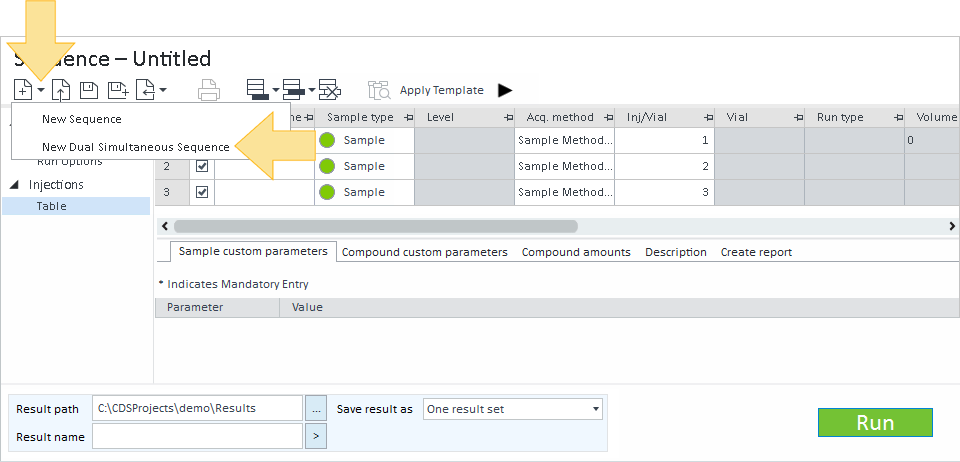
2. Click New > New Dual Simultaneous Sequence. To open a saved sequence, see Open a sequence file.
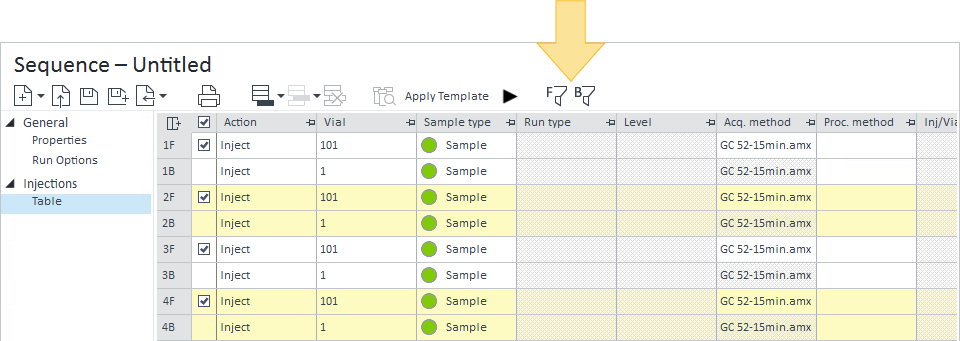
The sequence table contains two rows for each injection cycle: the Front injection (1F) and the Back injection (1B).
3. Select the Acquisition method and (optionally) the Sample Prep method for the injection cycle. The methods selected for the Front injection are automatically used for the Back injection.
4. Select the Processing method for the Front injection and Back injection in the injection cycle.
5. Select the Injection source for the injection cycle, either GC Injector – Dual or GC Valve – Both, depending on the available hardware.
6. Optional: Add barcodes to the sequence table.
7. If necessary, you can Add, Insert, or Delete injection cycles from the sequence table.
- Click to add an injection, report, or wait line to the end of the sequence.
- Click to insert an injection, report, or wait line above the selected line.
- Click to delete the selected line.
The background color of the injection cycle rows alternate between white and yellow so you can easily see which vials are being injected at the same time.
alternative [ˈɔːltəneɪt] : 번갈아 나오다, 대안의, 교대의
alternate between A and B :A와 B 사이를 번갈아 나타나다

You can filter the dual sequence table to display only the front or back injections. Click F to display only the front injections. Click B to display only the back injections.
8. Edit the existing details in the sequence table by typing them or using the menu and token buttons to edit the existing text. You can also use Fill Down to populate the table.
Fill Down : 아래로 채우다
populate [ˈpɒpjuleɪt] : (데이터를) 채우다, 거주시키다
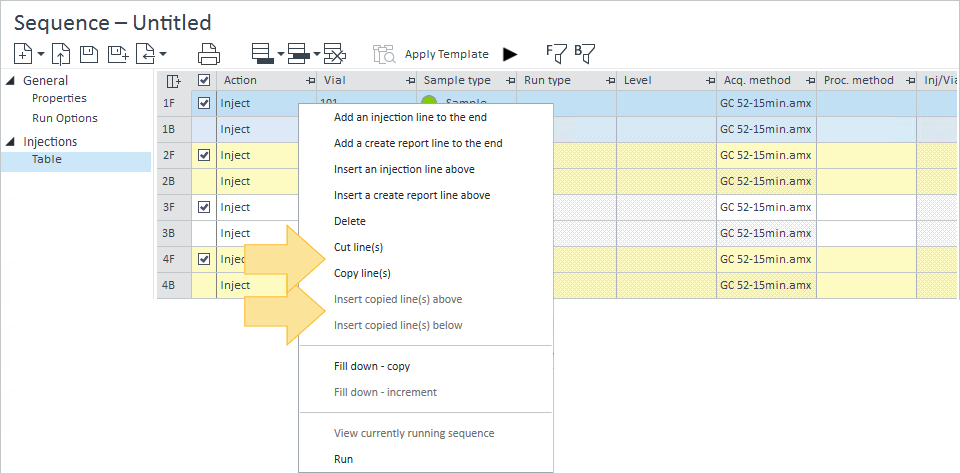
9. If necessary, right-click in the sequence table to:
- Copy line(s) or Cut line(s) of an injection cycle(s).
- Insert copied line(s) above or Insert copied line(s) below the selected injection cycle.
10. Select the injection cycles to submit as part of the run. By default, all injection cycles are selected.
11. To save your results to a sub-folder inside your Results folder, change the Result path by clicking browse and creating a new folder. You cannot save your results to an existing .rslt folder.
12. The Result name defaults to the last filename used for this instrument and project. Enter a filename by typing in the field or using the token button. If left blank, the instrument name and local date & time is used for the filename.
13. Select Save result as:
1) One result set to save the result as a single result set with all sequence rows.
For example:
ResultSetName: A1, B1, A2, B2, A3, B3, A4, B4, A5, B5
2) Two result sets (Front/Back) to save the results as separate front and back result sets.
For example:
ResultSetName-Front: A1, A2, A3, A4, A5
ResultSetName-Back: B1, B2, B3, B4, B5
3) Separate single injections to save the results as single samples.
For example:
ResultSetName1: A1
ResultSetName2: B1
ResultSetName3: A2
ResultSetName4: B2
14. Click Save Sequence to save your Dual Simultaneous sequence file (*.sqx).
Home > Acquisition > Sequence > Create sequences > Create a sequence for mass-based fraction collection (MBFC)
Create a sequence for mass-based fraction collection (MBFC)
To create a sequence for MBFC, you first have to configure your instruments and the acquisition method in OpenLab CDS.
Configure instruments
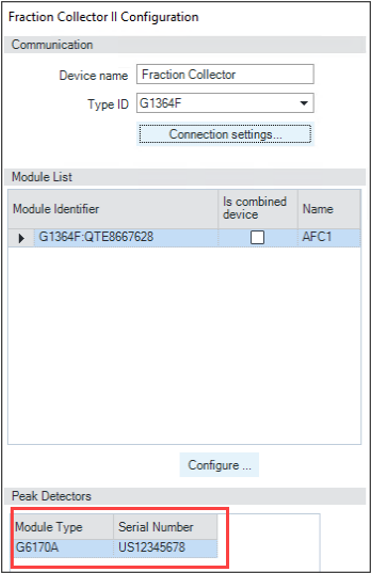
Your instrument must contain a Fraction collector (FC) and a Mass Detector (MSD) module.
- MSD: Check the Fraction collection enabled option to access the Mass-based fraction collection parameters section in the acquisition method.

- FC: The MSD must be listed in Peak Detectors section (detected automatically).
Configure acquisition method
You have to configure two parts of the method to support MBFC:
- Mass detector (MSD)
- Fraction collector
Configure Mass detector (MSD)
1. Select the Advanced Acquire section.
If you have selected the Fraction collection enabled option when configuring the instrument, the Mass-based fraction collection parameters section is then displayed.
2. Define the compounds to be considered to trigger fraction collection.

3. Click to add a target compound(s).
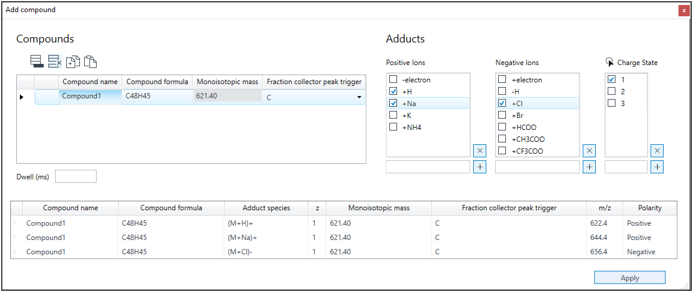
4. Define the Compound name and the Monoisotopic mass or the Compound formula.
If you define a formula, OpenLab CDS calculate the Monoisotopic automatically.
Monoisotopic mass(단일 동위원소 질량)
Compound formula
화합물 이름과 단일 동위원소 질량 또는 화합물 식을 정의합니다. 화학식을 정의하면, OpenLab CDS가 단일 동위원소 질량을 자동으로 계산합니다.
=> MSD는 화합물의 질량을 기준으로 작동한다. Monoisotopic mass(단일 동위원소 질량)는 가장 흔한 동위원소들의 질량 합으로, 질량 분석에서 가장 정확한 기준점이 된다.C10H20O와 같은 분자식을 입력하면 소프트웨어 내부의 원자량 데이터베이스를 통해 질량값을 자동으로 도출하여 사용자의 편의성을 높인다.
5. Select Adducts ions and the Charge State.
Ions will interact with the neutral molecule in the ionization source to create the ion that will be tracked by the Mass detector to trigger a fraction.
You can select one or several adducts per compound.
OpenLab CDS sets Positive or Negative automatically in the Polarity column according to the selected adduct.
첨가 생성물 이온(Adducts ions)과 전하 상태(Charge State)를 선택합니다. 이온들은 이온화원에서 중성 분자와 상호작용하여, 분획을 트리거하기 위해 질량 검출기에 의해 추적될 이온을 생성합니다.
화합물당 하나 또는 여러 개의 첨가 생성물을 선택할 수 있습니다. OpenLab CDS는 선택된 첨가 생성물에 따라 극성(Polarity) 열에 양이온(Positive) 또는 음이온(Negative)을 자동으로 설정합니다.
=> 질량 분석기는 중성 분자를 측정할 수 없고 '이온' 상태만 측정한다. 따라서 실제 검출되는 질량은 [M+H]+ 또는 [M+Na]+ 처럼 특정 이온이 붙은 형태(m/z)이므로 이를 정확히 지정해줘야 한다.
=> 이온화원(Ion Source) 내에서의 물리적 반응을 설명한다. 중성 상태의 시료에 양성자(H^+) 등이 결합하여 전하를 띠게 되어야만 MSD가 이를 감지하고 분획기를 작동시킬 수 있다.
=> 실제 분석 시 하나의 물질이 여러 형태의 이온(예: H^+ 결합형과 Na^+ 결합형 모두)으로 나타날 수 있으므로, 검출 확률을 높이기 위해 여러 이온을 동시에 추적하도록 설정하는 것이다.
=> 예를 들어 H^+ adduct는 양이온 모드(+), Cl^- adduct는 음이온 모드(-)에서 검출되므로 사용자의 실수를 방지하기 위해 소프트웨어가 이를 자동 매칭한다.
The Fraction collection peak trigger column propose five options (A, B, C, D , NOT). These options correspond to the Fraction Collector configured in the fraction collector part of the method.
You cannot edit the m/z column. It corresponds to the mass / charge that the MSD detects. Value is calculated with m= [monoisotopic mass + adduct mass] and z= charge of the ion generated.
In the Mass-based fraction collection parameters table, you define:
- the MSD parameters values used by the mass detector to ionize and detect the ions (fragmentor voltage, detector gain factor, dwell time),
- the Fraction target mass column among three values T1, T2 and T3.Those three values correspond to three sequence columns displayed for a MBFC instrument: SQ: T1 fraction target mass 1 to SQ: T3 fraction target mass 3. You have the option to define target masses (monoisotopic masses) to be used instead of the ones defined in the method during the sample acquisition. This allows you to override method target masses by keeping the ionization parameters, adducts and charges and MSD parameters defined in the method by the value defined in corresponding Fraction target mass column of the sequence.
Configure Fraction Collector
The Fraction collector interface supports both UV and Mass based fraction collection.
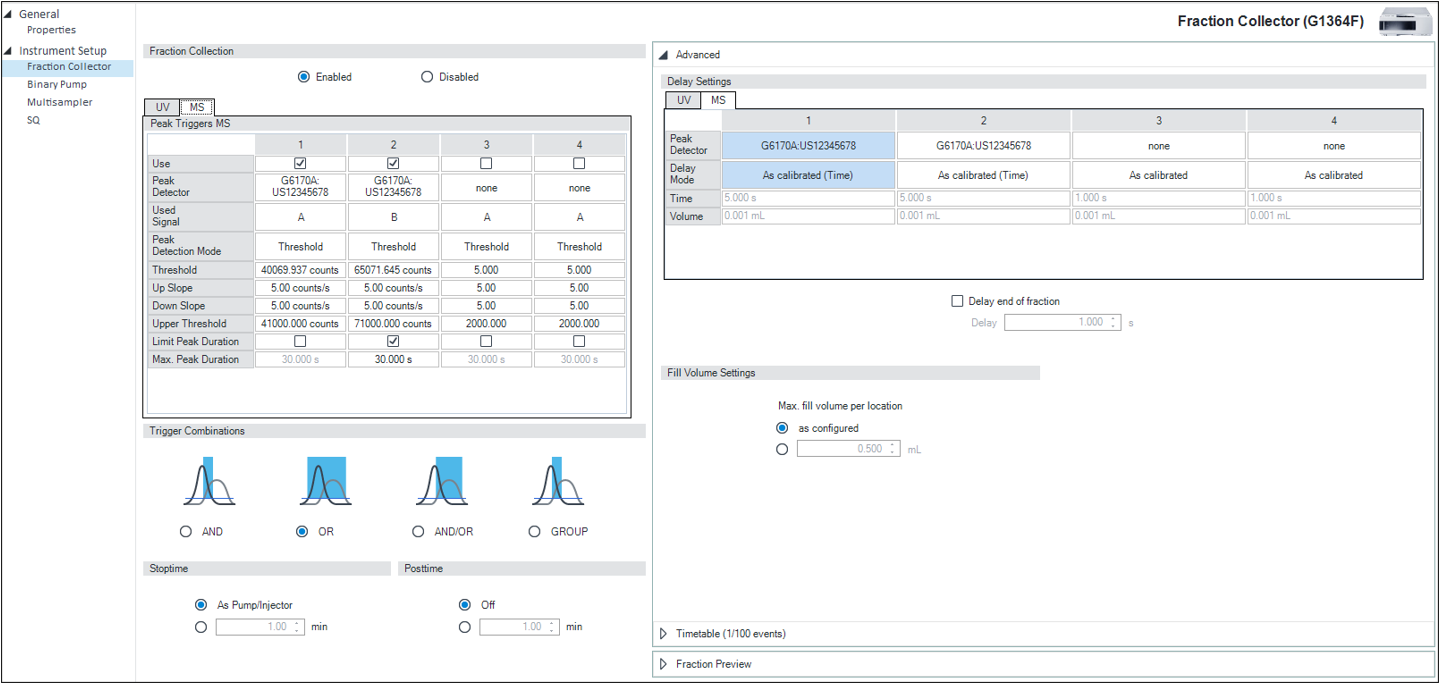
To configure the Fraction collector:
- Select Enabled to activate Fraction collection (common for both UV and MS).
- Select the MS tab of the table.
- Fill out the corresponding fields in the table.
- Use: Check as many signals as expected.
- Peak Detector: Select the MSD module.
- Used Signal: Select the signals configured in the Mass-based fraction collection parameters table for the Mass detector (A, B, C, D, NOT in Use Signal)
- Peak Detection Mode: Select the integration parameter used to detect a peak and assign a value in the corresponding field (ex : threshold). You can define graphically the value from the Fraction preview section by using an already acquired chromatogram as template.
In the Trigger Combinations section, you define the conditions for peaks detected in both MS and UV detectors.
In the Advanced section, you can configure the delays (time or volume) to be applied when collecting a fraction. In case of MBFC, you cannot use delay volume, only delay time. Select either Use time and define a time in seconds or As calibrated (Time)
- As calibrated (Time) uses the delay time computed by the delay calibration tool that is stored in the Fraction collector firmware
- As calibrated (Time) can be used only if delay calibration was done with an acquisition method similar to the current one (same Main pump flow, Make-up pump flow, Split rate, Delay Coil).
Other options (Use Volume, As calibrated) are dedicated to UV and cannot be used for MBFC.
Home > Acquisition > Sequence > Select sequence sample types
Select sequence sample types
Sample types are used in a sequence to describe each item being processed. You select sample types in the sequence table or as part of a sequence template.
Table: Sample type descriptions
Sample
A sample with unknown amounts of analytes being analyzed.
analyte [ˈænəlaɪt] : 분석물(분석 대상 성분)
분석 중인 분석물의 양을 알 수 없는 샘플.
=> 우리가 실제로 함량을 알고자 하는 미지 시료(Unknown Sample)
Blank
A sample without any analytes that is treated like a sample. It is used as a signal-to-noise reference for all subsequent samples and for system suitability. If an ISTD method is being used, then the Blank usually contains the internal standard.
분석물이 포함되지 않은 샘플로, 일반 샘플처럼 취급됩니다. 이것은 이후의 모든 샘플에 대한 신호 대 잡음(S/N) 비율의 기준 및 시스템 적합성 확인을 위해 사용됩니다. 만약 내부 표준법(ISTD)이 사용되는 경우, Blank는 일반적으로 내부 표준물질을 포함합니다.
Double blank
Sometimes called "solvent blank", it is used to prove that no chromatographic artifacts are coming from the instrument flow path for that particular column.
artifacts [ˈɑːrtɪfækt] : 아티팩트(인공적인 오류/흔적)
Double blank : 때로는 "solvent blank"라고 불리며, 특정 컬럼에 대해 기기 흐름 경로에서 크로마토그래피 가짜 피크가 나오지 않음을 증명하는 데 사용됩니다
=> 일반적인 Blank는 Analyte만 빼지만 ISTD는 넣는 경우가 많다. 하지만 Double Blank는 내부 표준물질조차 넣지 않은 순수 용매그 자체를 의미한다. 그래서 '이중으로 비어 있다'는 뜻의 Double을 쓴다.
=> Double Blank를 찍었는데도 피크가 나온다면, 그것은 시료의 문제가 아니라 기기 시스템(Flow path) 어딘가가 오염되었다는 강력한 증거가 된다.
Cal. Std. (Calibration standard)
A sample with a known amount of analyte that is used as a reference to create or update a calibration table in the processing method.
processing method에서 검량선(Calibration Table)을 작성하거나 업데이트하기 위해 참조로 사용되는, 분석물의 양을 알고 있는 샘플입니다.
QC check
A sample with a known amount of analyte that is used to verify and prove that the calibration is correct.
Calibration이 정확한지 확인하고 증명하기 위해 사용되는, 분석물의 양을 알고 있는 샘플입니다.
=> 검량선을 만든 후, 분석 중간에 이 샘플을 찍어서 기기가 여전히 정확한 값을 내고 있는지(유효성) 점검하는 용도
Spike
A sample with a known amount of standard added.
일정량의 표준물질이 첨가된 샘플.
=> Spike : 못, 찌르다
- Sample (시료): 우리가 분석하고자 하는 전체 덩어리 (예: 오렌지 주스 한 병)
- Analyte (분석물): 샘플 안에 있는 분석하고자하는 성분. (예: 주스 속 비타민 C)
- Matrix (매트릭스/기질): 샘플에서 Analyte을 제외한 나머지 모든 성분. (예: 주스 속의 물, 당분, 구연산, 색소 등)
순수용매와 다르게 실제 시료(Matrix) 안에는 분석을 방해하는 수만 가지 물질이 섞여 있다.
① 회수율(Recovery) 테스트
예를 들어, 강물에 오염물질 A가 100만큼 들어있다고 예상되는데, 전처리 과정(필터링, 가열 등)에서 20만큼 사라질 수도 있다. 이를 확인하기 위해, 아무것도 없는 깨끗한 물에 표준물질 A를 100만큼 강제로 넣고(Spiking) 분석한다.
만약 결과가 80만 나온다면 현재 분석법은 20% 정도 손실이 발생하는 것임을 알 수 있다.
② 매트릭스 방해 효과 (Matrix Effect)
똑같은 비타민 C 10mg이라도, 순수한 물에 녹였을 때와 걸쭉한 오렌지 주스에 들어있을 때 기기가 읽어내는 신호의 세기가 다를 수 있다. 주스 속의 당분이나 단백질이 기기 센서를 가리거나 반응을 방해하기 때문이다.
따라서 실제 시료에 표준품을 넣었을 때와 순수 용매에 넣었을 때의 결과값이 다르다면, 시료 속의 불순물이 분석을 방해하고 있다는 증거가 된다.
Sys Suit
A sample that is run to demonstrate that system is working correctly as expected. This sample is typically run before running other samples.
시스템이 예상대로 올바르게 작동하고 있음을 증명하기 위해 실행되는 샘플. 이 샘플은 일반적으로 다른 샘플을 실행하기 전에 실행됩니다.
Home > Acquisition > Sequence > Sample tray
Sample tray
Sample tray
Home > Acquisition > Sequence > Sample tray > View sample trays
View sample trays
If you are using an LC instrument with a Multisampler or standard sampler, you can view your sequence in the sample tray. After the trays have been positioned in your Multisampler, edit the 3D image of your trays, and then view your sequence in a tray. Only the user controlling the LC instrument will be able to reconfigure the instrument. Any attempt to reconfigure the instrument is recorded in the Activity Log.
1. Create or open a sequence.
2. Click Show sample trays.

3. The sample tray appears as a floating window that you can click and drag to any location. Sample trays are displayed on the left, and fraction/recovery trays are shown on the right.
샘플 트레이는 클릭하여 원하는 위치로 드래그할 수 있는 플로팅 창(부유 창) 형태로 나타납니다. 샘플 트레이는 왼쪽에 표시되고, 분취/회수 트레이는 오른쪽에 표시됩니다.
Set up the 3D image to match the physical trays in your Multisampler. If you are using a standard sampler, the correct tray type will automatically be detected by the instrument and display.
실제 멀티샘플러에 있는 물리적 트레이와 일치하도록 3D 이미지를 설정하십시오. 표준 샘플러를 사용하는 경우, 장비가 올바른 트레이 유형을 자동으로 감지하여 표시합니다.
To select the specific tray being used in the Multisampler, select the tray in the 3D image, and select the tray type from the drop-down list.
멀티샘플러에서 사용 중인 특정 트레이를 선택하려면, 3D 이미지에서 트레이를 선택한 후 드롭다운 목록에서 트레이 유형을 선택하십시오.
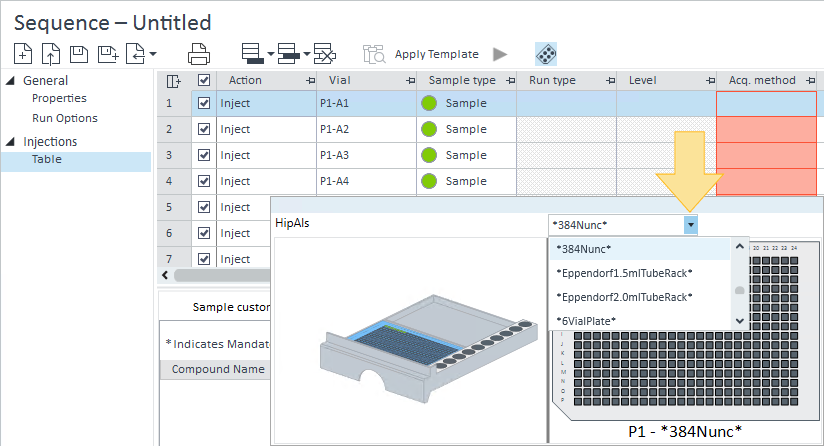
If you change your tray type, the available vial numbers may also change. If your sequence table contains injections assigned to a vial location that does not exist on the tray, the sequence rows will become invalid, and you will not be able to run the sequence. To validate the rows, you can change the vial location or delete the invalid rows.
트레이 유형을 변경하면 사용 가능한 바이알 번호도 변경될 수 있습니다. 시퀀스 테이블에 트레이에 존재하지 않는 바이알 위치로 할당된 주입 항목이 포함되어 있으면, 해당 시퀀스 행은 유효하지 않게 되며 시퀀스를 실행할 수 없습니다. 행을 유효하게 만들려면 바이알 위치를 변경하거나 유효하지 않은 행을 삭제하십시오.
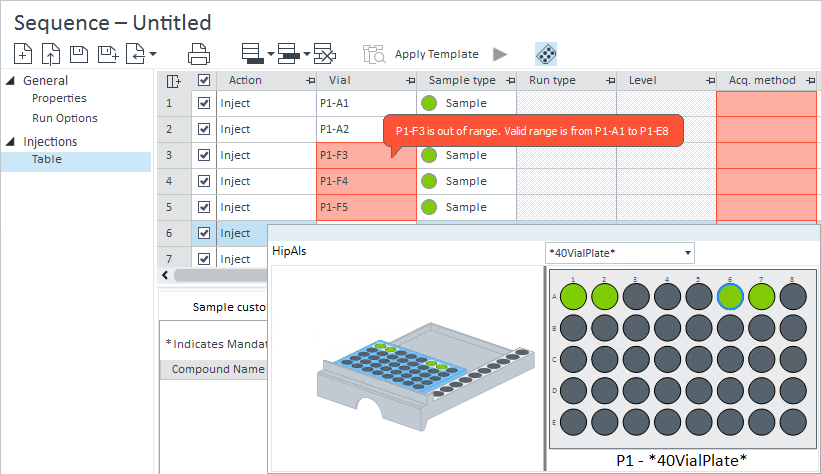
To add a tray to a Multisampler 3D image, select a blank space in the 3D image, and select the tray type from the drop-down list.

4. Select a tray in the 3D image to view the sample configuration for that tray. The tray highlighted in blue is the tray configuration displayed.
해당 트레이의 샘플 구성을 보려면 3D 이미지에서 트레이를 선택하십시오. 파란색으로 강조된 트레이가 현재 표시되고 있는 트레이 구성입니다.
If you add a row to your sequence table or change the Sample type in your sequence table, the vial location in the tray updates automatically. If there are multiple rows with the same vial location, the sample type of the latest injection row determines the color of the vial location.
시퀀스 테이블에 행을 추가하거나 시퀀스 테이블에서 샘플 유형을 변경하면, 트레이의 바이알 위치가 자동으로 업데이트됩니다. 동일한 바이알 위치에 여러 행이 있는 경우, 가장 최근 주입 행의 샘플 유형이 바이알 위치의 색상을 결정합니다.
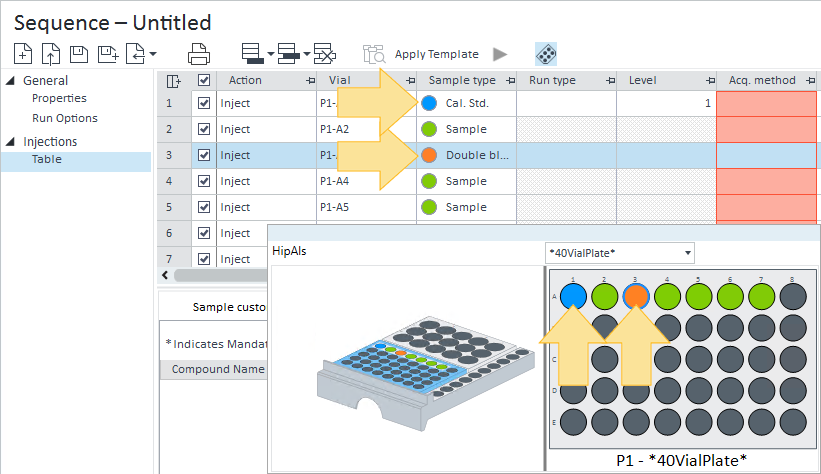
The vial location in the sample tray displays a color based on the sample type and injection status:
- Red highlight: Aborted
- Light blue highlight Acquiring
- Light green highlight: Acquired
- Green: Sample
- Blue: Calibration standard
- Grey: Blank
- Purple: QC check
- Orange: Double blank
- Magenta: Spike
- Brown: System Suit
- Clear/white: None
Home > Acquisition > Sequence > Sample tray > Use the sample tray to select sequence via vials
Use the sample tray to select sequence via vials
You can graphically select vial locations in the sample tray to define them in the Sequence table. The sample tray also allows the graphical selection of fraction start and recovery locations. Selections in the sample tray can be used to populate the sample vial, fraction start location, and recovery location values quickly.
샘플 트레이에서 그래픽으로 바이알 위치를 선택하여 시퀀스 테이블에 정의할 수 있습니다. 샘플 트레이는 분취 시작 및 회수 위치의 그래픽 선택도 허용합니다. 샘플 트레이에서의 선택은 샘플 바이알, 분취 시작 위치 및 회수 위치 값을 신속하게 채우는 데 사용될 수 있습니다.
When one row is selected in the Sequence table, select a vial, fraction, or recovery location in the sample tray to update the value in the Sequence table for the selected line.
시퀀스 테이블에서 한 행이 선택되었을 때, 샘플 트레이에서 바이알, 분취 또는 회수 위치를 선택하면 선택된 줄의 시퀀스 테이블 값이 업데이트됩니다.

When any number of rows are selected in the Sequence table, the corresponding vials are highlighted in the sample tray by a blue circle.
시퀀스 테이블에서 임의의 수의 행이 선택되면, 해당 바이알은 샘플 트레이에서 파란색 원으로 강조 표시됩니다.

When multiple rows are selected in the Sequence table, click and drag a selection in the sample tray to update the selected rows with the selected vials. Vials are defined sequentially according to the pattern displayed while dragging on the sample tray. Click and drag selections for multiple rows is not available when updating the fraction start or recovery locations.
시퀀스 테이블에서 여러 행이 선택되었을 때, 샘플 트레이에서 선택 영역을 클릭하고 드래그하면 선택된 바이알들로 선택된 행들이 업데이트됩니다.
=> 일괄 할당(Bulk Assignment) 기능. 예를 들어 테이블에서 10줄을 선택하고 트레이에서 바이알 10개를 드래그하면 순서대로 번호가 매겨진다.
바이알은 샘플 트레이에서 드래그하는 동안 표시되는 패턴에 따라 순차적으로 정의됩니다.
=> 사용자가 지그재그나 가로, 세로 방향으로 드래그할 때 화면에 미리 보이는 진행 방향(Pattern) 그대로 시퀀스 번호가 부여된다.
분취 시작 또는 회수 위치를 업데이트할 때는 여러 행에 대한 클릭 및 드래그 선택을 사용할 수 없습니다.
=> 분취 위치만큼은 한 줄 한 줄 직접 확인하며 입력해야함.
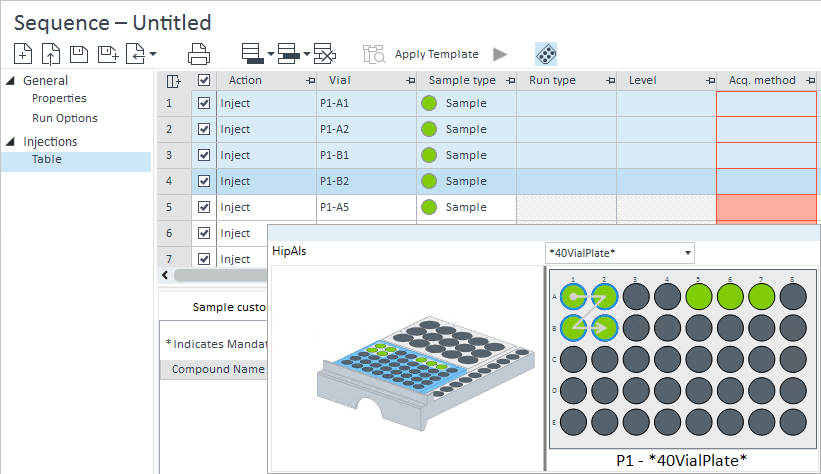
If more vial locations are selected in the sample tray than there are number of rows selected in the Sequence table, additional lines are added to the Sequence table.
시퀀스 테이블에서 선택된 행의 수보다 샘플 트레이에서 더 많은 바이알 위치가 선택되면, 시퀀스 테이블에 추가 행이 추가됩니다.
=> 자동 행 생성(Auto-generation) 기능. 예를 들어 테이블에서 5줄만 만들어놨어도 트레이에서 10개를 드래그하면, 나머지 5줄이 자동으로 시퀀스 테이블에 생성된다.
